Fast Mode Explained: Instant Video Splitting
How Fast Mode splits videos in seconds without re-encoding, why cuts may land a few frames off, and when to use it vs normal mode.
What Is Fast Mode?
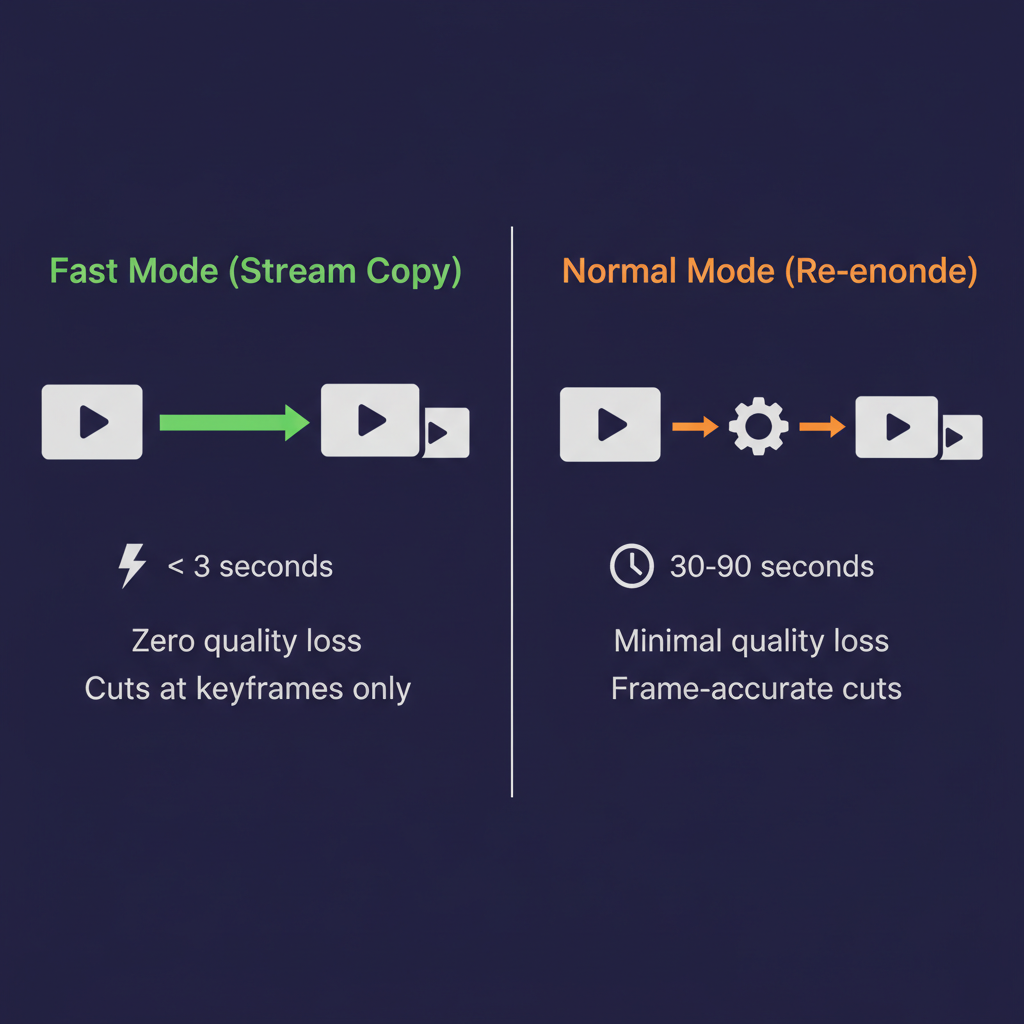
Fast Mode is a setting in our Video Splitter that lets you split a video almost instantly, regardless of file size. A 500 MB video that takes two minutes to split in normal mode can be done in under three seconds with Fast Mode enabled.
The speed comes from a fundamental difference in how the video data is handled. Normal mode decodes every frame, re-encodes them into new files, and writes the output. Fast Mode skips all of that. It copies the original compressed data directly into new files without touching the actual video or audio content.
In FFmpeg terminology, this is called stream copy (-c copy). The video and audio streams are transferred byte-for-byte from the source file into the output clips. No decoding, no encoding, no quality change.
How Video Files Are Structured
To understand why Fast Mode has trade-offs, it helps to know a little about how video compression works.
A video file is not a sequence of independent images. Modern codecs like H.264 and VP9 use a technique called inter-frame compression, where most frames store only the differences from nearby frames rather than a complete picture. This makes files much smaller but creates dependencies between frames.
There are three types of frames:
- I-frames (keyframes) store a complete image. They can be decoded on their own without any other frame.
- P-frames store the difference from a previous frame. They depend on the frame before them.
- B-frames store differences from both a previous and a future frame. They depend on frames in both directions.
A typical video might place a keyframe every 1 to 2 seconds, with P-frames and B-frames filling the gaps in between. The exact interval depends on the encoder settings, the codec, and the content.

Why Keyframes Matter for Splitting
When you split a video, each output clip needs to start with a keyframe. Without one, a video player would not know how to decode the first few frames of the clip because those frames depend on data that is no longer in the file.
In normal mode (re-encoding), the splitter can decode all frames and then create a fresh keyframe at exactly the point where you placed your cut. The output starts cleanly from whatever frame you chose.
In Fast Mode, the splitter cannot create new keyframes because it is not decoding or encoding anything. It is just copying compressed data. So it must start each clip at the nearest existing keyframe to your cut point.
How Fast Mode Decides Where to Cut
When you place a split point at, say, 1:30.500 in a video, here is what happens in each mode:
Normal mode: The splitter decodes the video up to frame 1:30.500, marks that as the split point, re-encodes the output, and creates a new keyframe right at that position. The cut is frame-accurate.
Fast Mode: The splitter looks at the compressed data and finds the nearest keyframe to 1:30.500. If keyframes are at 1:29.800 and 1:31.200, it will cut at 1:29.800 (the keyframe just before your requested point). The actual cut happens about 0.7 seconds earlier than where you placed it.
This is the core trade-off. Fast Mode is nearly instant, but your cuts snap to the nearest keyframe instead of landing on the exact frame.
How Far Off Can the Cuts Be?
The maximum offset depends on the GOP (Group of Pictures) size, which is the distance between keyframes in the original video. Common values:
| Source | Typical GOP | Max Offset |
|---|---|---|
| Screen recordings | 1-2 seconds | Up to ~2 seconds |
| Smartphone video | 1-2 seconds | Up to ~2 seconds |
| Professional video (H.264) | 2-4 seconds | Up to ~4 seconds |
| Streaming video (YouTube rips) | 2-6 seconds | Up to ~6 seconds |
| Variable keyframe interval | Varies | Unpredictable |
For most consumer video (phone recordings, screen captures, webcam footage), keyframes are every 1-2 seconds, so Fast Mode cuts will be within a second or two of your target.
For video downloaded from streaming services, the keyframe interval can be longer (up to 6 seconds), which means larger offsets.
When to Use Fast Mode
Fast Mode is the right choice when:
- Speed matters more than precision. You need to quickly chop a long recording into rough segments.
- You are splitting for file size. Upload limits on email or messaging apps do not care if the cut is a second off.
- The video is large. Re-encoding a 4K video takes significant time and CPU. Fast Mode handles any file size in seconds.
- You want zero quality loss. Since Fast Mode copies the original data, there is absolutely no quality degradation. The output is bit-identical to the corresponding section of the source.
- You are splitting by equal parts or duration. For bulk splitting (e.g., breaking a 2-hour recording into 10-minute chapters), a second or two of offset per cut is usually fine.
When to Use Normal Mode Instead
Turn Fast Mode off when:
- You need frame-exact cuts. Editing a highlight reel, trimming a clip for social media where the first and last frames matter, or removing a specific section from a video.
- You want to change the output format. Fast Mode keeps the original container and codec. If you need to convert from MKV to MP4, or from VP9 to H.264, you need normal mode.
- You want to adjust quality. Normal mode lets you choose High, Medium, or Low quality, which controls the output file size. Fast Mode has no quality control because it copies the original data as-is.
- The video has long keyframe intervals. If your source video has keyframes every 4-6 seconds, the offset in Fast Mode may be too large for your needs.
Fast Mode Shortcomings
To be clear about the limitations:
1. Cuts Are Not Frame-Accurate
This is the primary limitation. If you need a clip to start at exactly 1:30.000, Fast Mode cannot guarantee that. The clip will start at the nearest keyframe, which could be up to several seconds away depending on the source video.
2. No Format Conversion
The output stays in the same container format and codec as the input. You cannot convert an MKV to MP4 or change the video codec with Fast Mode.
3. No Quality Adjustment
There is no option to reduce file size by lowering quality. The output is the same bitrate and resolution as the source.
4. Potential Playback Issues at Cut Points
Some players may show a brief glitch or black frame at the start of a Fast Mode clip. This happens when the cut point falls between keyframes and the player does not handle the incomplete GOP gracefully. Modern players (VLC, Chrome, most phones) handle this well, but older or less capable players might show a hiccup.
5. Audio Sync Can Drift Slightly
Audio frames do not align perfectly with video keyframes. In rare cases, Fast Mode clips may have a few milliseconds of audio offset at the start. This is usually imperceptible but can matter for professional editing workflows.
How to Tell If Fast Mode Is Good Enough
The quickest test: split one clip with Fast Mode, play it, and check if the start and end points are close enough for your needs. If the offset bothers you, turn Fast Mode off and re-split. The original file is never modified, so you can always try again.
You can also look at the split preview table in the tool, which shows the start and end times for each clip. These times reflect where the actual cuts will happen after snapping to keyframes.
Try It Yourself
Open the Video Splitter, load a video, and toggle Fast Mode on and off to see how it affects your split points. The tool shows a real-time preview of where each clip will start and end, so you can evaluate the trade-off before committing to the split.
Use in Your Language
The Video Splitter is available in Español, Français, Deutsch, 日本語, 한국어, Русский, and 中文.
Other Tools
Looking for more? You can also convert video formats, extract audio from video, split audio files, or crop images — all free and browser-based.