AI Toolbox Logo
AI ToolboxVideo Tools

Video Converter

Convert video to any format instantly in your browser

100% FreeNo UploadUnlimitedLocal Processing

Convert Video Free — No Upload, No Limits, 100% Private

Need to convert video files without uploading them to the cloud? Convert video between MP4, WebM, MKV, AVI, MOV and more without uploading to any server. Our browser-based converter processes files locally on your device — keeping your footage private while delivering professional results.

Powered by FFmpeg + WebAssembly

Popular Video Formats

Use our free tool to convert video files between the most commonly used formats for any platform or device.
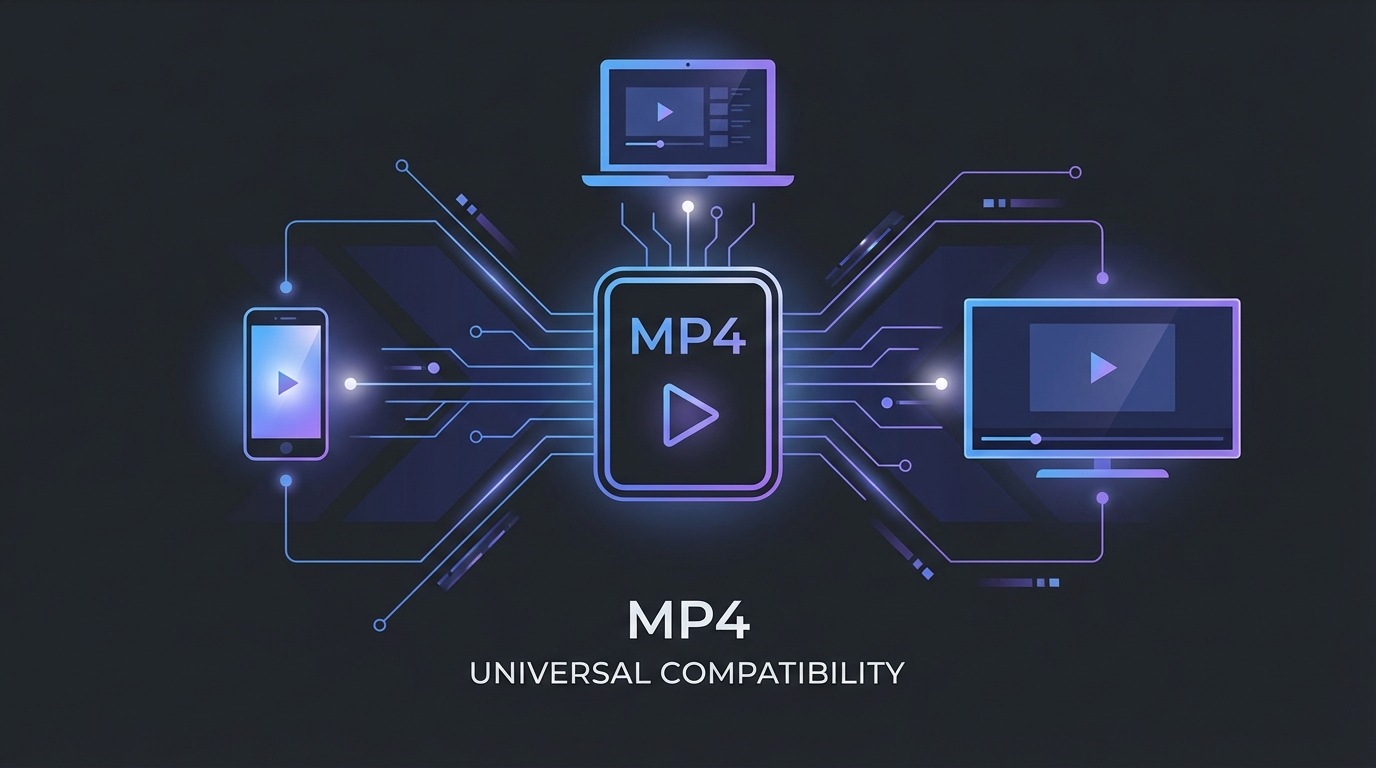
Convert video to MP4 format - universal compatibility for all devices

MP4 (H.264)

The universal standard. Plays on virtually every device, browser, and platform. Best choice for sharing and compatibility.
Convert video to WebM format - optimized for web streaming and HTML5

WebM (VP9)

Open web format optimized for streaming. Smaller files with excellent quality. Ideal for web embedding and HTML5 video.
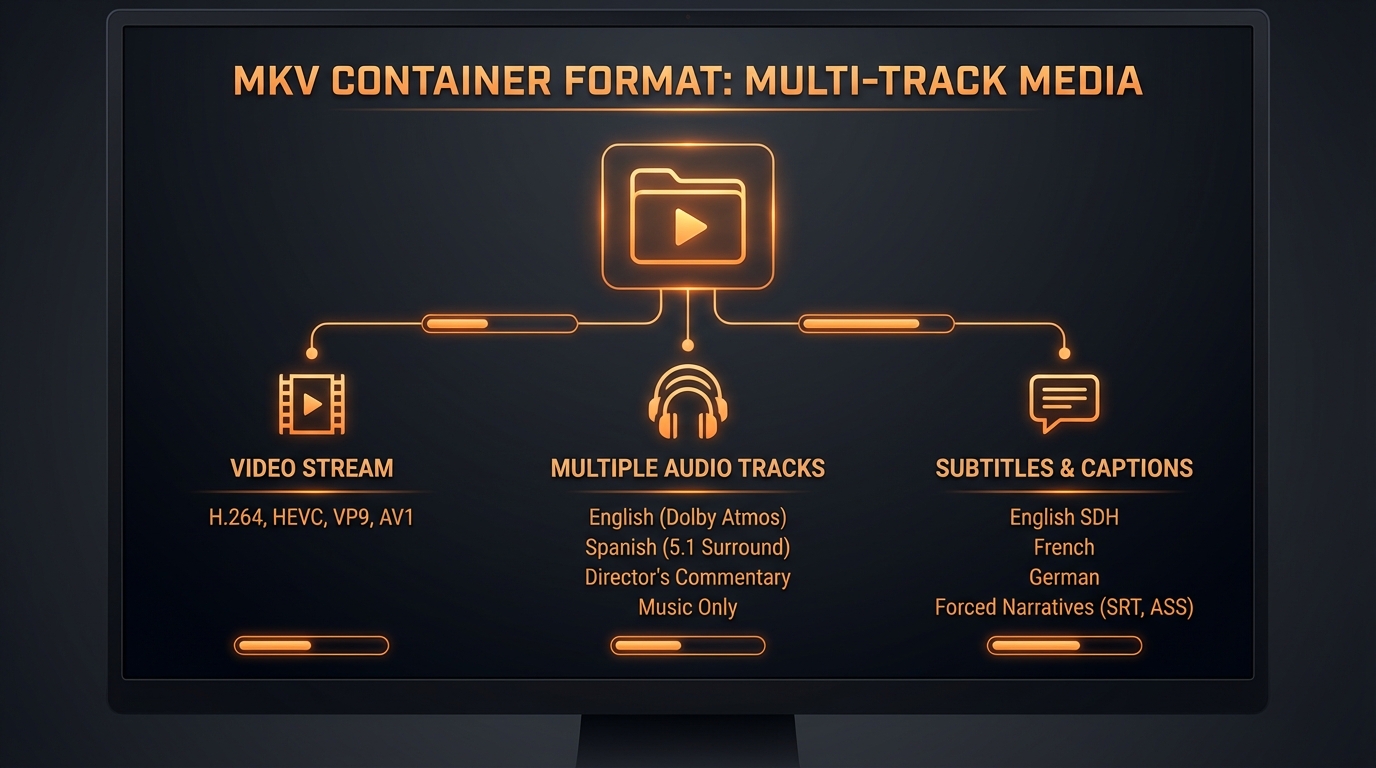
Convert video to MKV format - high-quality archiving with multiple tracks

MKV (Matroska)

Flexible container supporting multiple audio tracks and subtitles. Popular for high-quality video archiving.
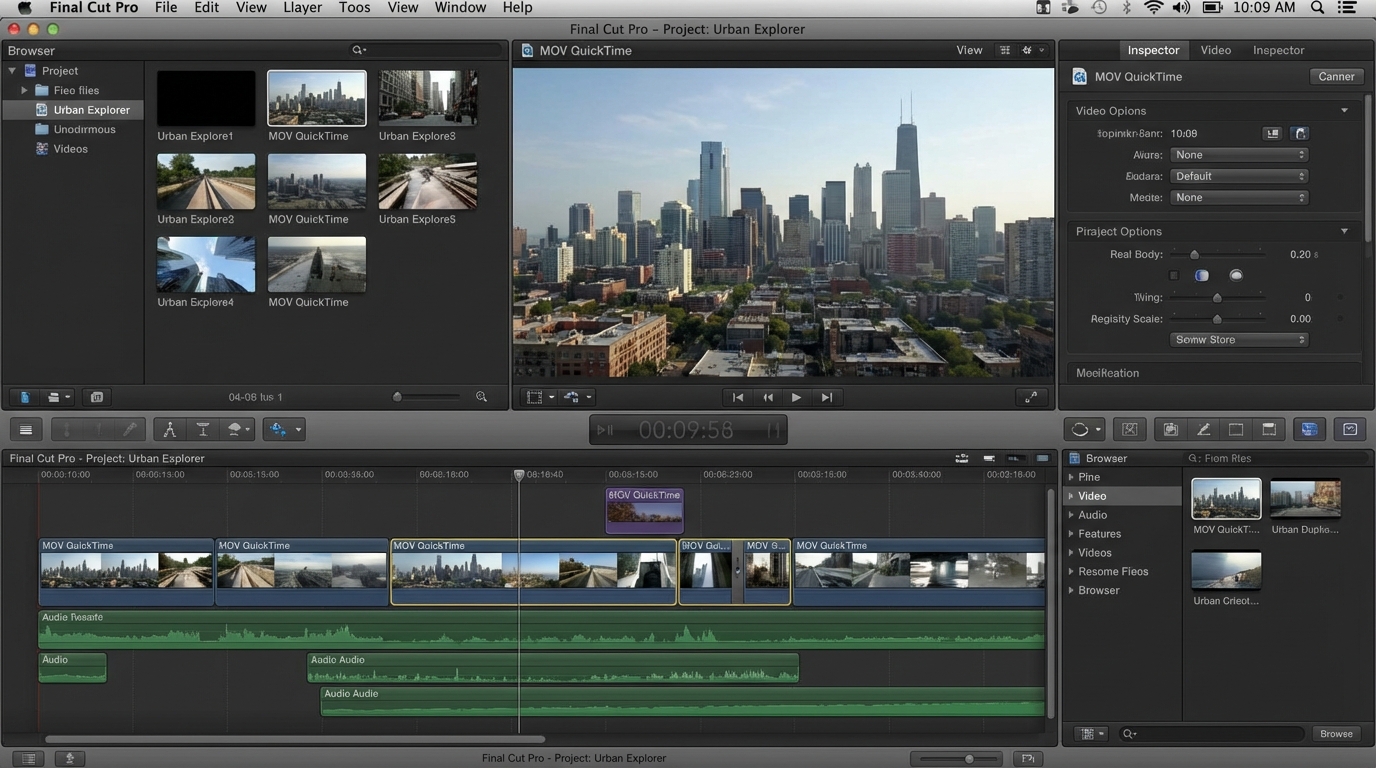
Convert video to MOV format - Apple QuickTime for professional editing

MOV (QuickTime)

Apple's professional format. Native support in Final Cut Pro and macOS. Great for video editing workflows.

Quality & Encoding Settings

When you convert video, fine-tune your output with quality presets and encoding speed options for the perfect balance of file size and visual fidelity.

CRF Quality Control

Choose High, Medium, or Low quality. Higher quality means larger files but better visual detail. Medium is recommended for most uses.

Encoding Speed

Slower encoding produces smaller files at the same quality. Fast is great for quick conversions; Slow is ideal for final exports.

Why Local Conversion Beats Cloud Services

Cloud services make you upload, wait, and download just to convert video files. Our local-first approach eliminates all of that — convert video instantly without any uploads.

Privacy: Your videos never leave your device — essential for personal, confidential, or sensitive content.
Speed: No upload queue means you start converting the instant your file loads.
No Limits: Convert files of any size without hitting server quotas or waiting in line.

Zero-Upload Privacy

Privacy illustration showing local video processing without server uploads

All conversion happens in your browser using WebAssembly-compiled FFmpeg. No video data touches our servers — there's no cloud processing, no tracking, and no server logs. Close the tab and everything is gone.

How to Convert a Video

1

Upload Your Video

Drag and drop your video file or click to browse. Supports MP4, MKV, WebM, AVI, MOV, and 7 more formats.

2

Choose Output Format

Select your target format from 12 options. Adjust quality (High/Medium/Low) and encoding speed for your needs.

3

Download Converted File

Click Convert Video and download your new file. Processing happens locally — no upload wait.

Why Choose AI Toolbox?

See how we compare to other video converters

AI Toolbox

No Download Required
100% Private
No Watermarks
No Account Required
Works Offline
Completely Free

HandBrake

No Download Required
100% Private
No Watermarks
No Account Required
Works Offline
Completely Free

CloudConvert

No Download Required
100% Private
No Watermarks
No Account Required
Works Offline
Completely Free

Zamzar

No Download Required
100% Private
No Watermarks
No Account Required
Works Offline
Completely Free

Convertio

No Download Required
100% Private
No Watermarks
No Account Required
Works Offline
Completely Free

Online-Convert

No Download Required
100% Private
No Watermarks
No Account Required
Works Offline
Completely Free

Frequently Asked Questions

Yes! You can convert video safely with our tool. Our video converter processes everything locally in your browser. Your video files are never uploaded to any server, making it completely private and secure.
You can convert between MP4, MKV, WebM, AVI, MOV, WMV, FLV, 3GP, MPEG, OGV, M4V, and GIF. The tool automatically detects your input format and supports all these as output options.
Simply upload your video file, select MP4 as the target format, choose your preferred quality level, and click Convert Video. The converted MP4 will be ready to download in moments.
Yes! Since processing happens entirely in your browser, there's no server file size limit. Your computer's memory is the only constraint. Files up to 500MB are supported for optimal performance.
Quality controls the CRF (Constant Rate Factor) value for encoding. High produces the best visual quality with larger files, Medium offers a balanced approach, and Low creates smaller files with reduced quality.
Encoding speed is a trade-off between conversion time and file size. Slower presets produce smaller files at the same quality level but take longer. Fast is good for quick conversions; Slow is best for final exports where size matters.
WebM (VP9) offers better compression than MP4 (H.264) at the same quality, resulting in smaller files. It's open-source and optimized for web use. However, MP4 has broader device compatibility.
Yes, but with limitations. Chrome on Android handles moderate-size videos well. iOS Safari is slower due to limited WebAssembly performance. For large files or 4K video, a desktop browser is recommended.
Conversion time depends on file size, your CPU, and the encoding speed setting. A typical 5-minute 1080p video takes 30-90 seconds on a modern laptop with Medium speed.
Re-encoding always involves some quality loss, but it's minimal with High quality settings. For the best results, use High quality and a slower encoding speed. Converting to the same format you started with is usually unnecessary.
MP4 with H.264 encoding is the universal standard for social media. Every major platform — Facebook, Instagram, TikTok, Twitter, and LinkedIn — accepts MP4 natively with no re-encoding. Use Medium or High quality at 1080p resolution for the best balance of visual clarity and fast upload times.
Use a slower encoding speed preset (Slow or Very Slow) which compresses more efficiently at the same visual quality. You can also switch to WebM (VP9), which achieves smaller files than MP4 (H.264) at equivalent quality. Keeping the quality setting on Medium rather than High can cut file size by 30-50% with barely noticeable difference.
A container (like MP4, MKV, or WebM) is the file format that packages video, audio, and metadata together. A codec (like H.264 or VP9) is the compression algorithm that encodes and decodes the actual video data inside the container. The same codec can often be stored in different containers — for example, H.264 video works in both MP4 and MKV files.
Subtitles that are burned into the video (hardcoded) will be preserved during conversion since they are part of the video frames. However, soft subtitles stored as separate text tracks may not transfer to all output formats. MKV is the best container for preserving multiple subtitle tracks.
CRF (Constant Rate Factor) is a quality control value used by H.264 and VP9 encoders. Lower CRF numbers produce higher quality and larger files, while higher numbers reduce quality and file size. Our High, Medium, and Low quality presets map to optimized CRF values so you don't need to set them manually.
Select GIF as your target format and the converter will handle the rest. Keep in mind that GIFs have no audio, limited color depth (256 colors), and produce much larger files than video formats for the same content. For short clips under 10 seconds, GIF works great; for longer content, consider WebM which supports transparency and is far more efficient.
YouTube recommends MP4 with H.264 video and AAC audio at the highest resolution you have. Instagram and TikTok also prefer MP4, ideally in 9:16 vertical aspect ratio at 1080x1920 for Reels and Stories. All three platforms will re-encode your upload regardless, so starting with High quality MP4 gives the best final result.
Currently, our converter processes one video at a time to ensure maximum performance and stability in the browser. You can convert files back-to-back by clicking 'Convert Another Video' after each download. Each conversion runs entirely locally, so there are no server queues or wait times between files.
H.265 (HEVC) offers roughly 50% better compression than H.264 at the same visual quality, meaning smaller files. However, H.264 has near-universal playback support across all devices and browsers, while H.265 support is still limited on older devices and some web browsers. For maximum compatibility, H.264 in an MP4 container remains the safest choice.
For older TVs, DVD players, or legacy media players, convert to MP4 (H.264) with Medium quality — it is the most widely supported combination. If targeting very old devices, MPEG (MPG) or AVI with baseline H.264 can work. Avoid newer formats like WebM or MKV, as older hardware typically lacks the codecs to decode them.

Responsible Use & Compliance

Please convert only content you own or have rights to use. Respect copyright laws and platform terms of service.

Ready to Convert Your Video?

Drop your file above and convert video instantly — no sign-up, no limits, no waiting.

Drop your video here