AI Toolbox Logo
AI ToolboxVideo Tools
100% FreeNo UploadUnlimitedLocal Processing

Crop Images Free — No Upload, No Limits, 100% Private

Precisely crop your photos with our browser-based image cropper. Choose from preset aspect ratios or freeform cropping, adjust zoom, and export in JPEG, PNG, or WebP format. All processing happens locally — your images never leave your device.

Powerful Cropping Features

Everything you need for precise image cropping in one simple tool.
Aspect Ratio Presets

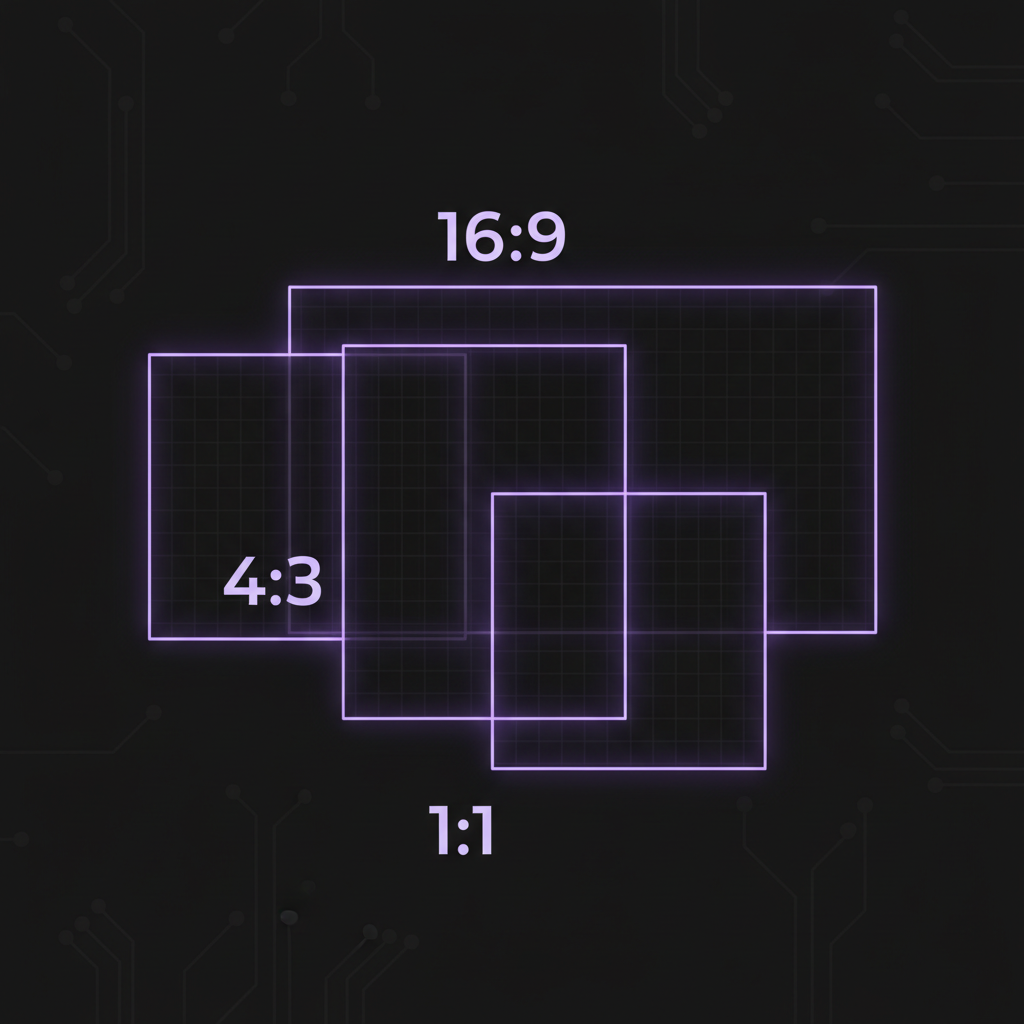
Aspect Ratio Presets

Choose from common ratios like 1:1 for social media, 16:9 for presentations, or 4:3 for photos. Or go freeform for complete control.
Zoom & Pan Controls

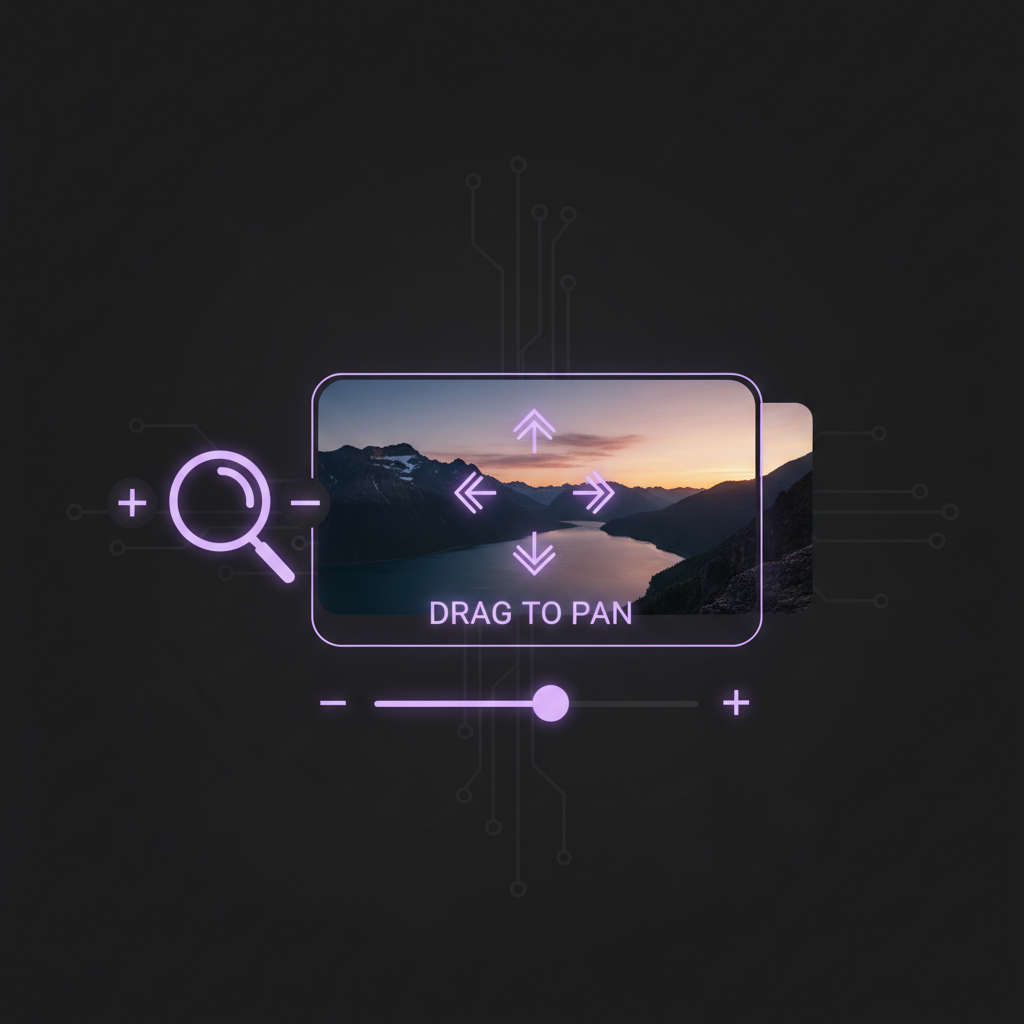
Zoom & Pan Controls

Drag to reposition your image and use the zoom slider for precise framing. Perfect for getting exactly the crop you want.
Multiple Output Formats

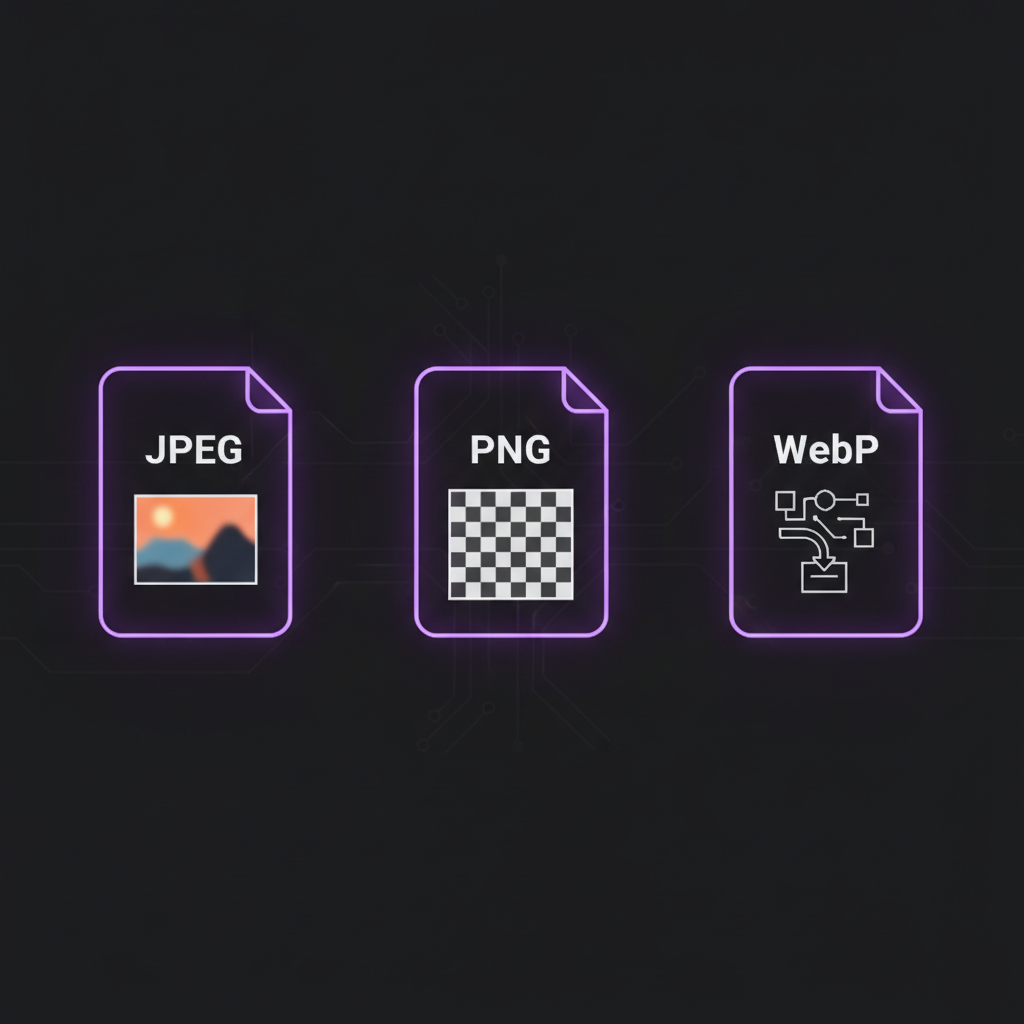
Multiple Output Formats

Export as JPEG for photos, PNG for graphics with transparency, or WebP for the best compression. Adjust quality to control file size.
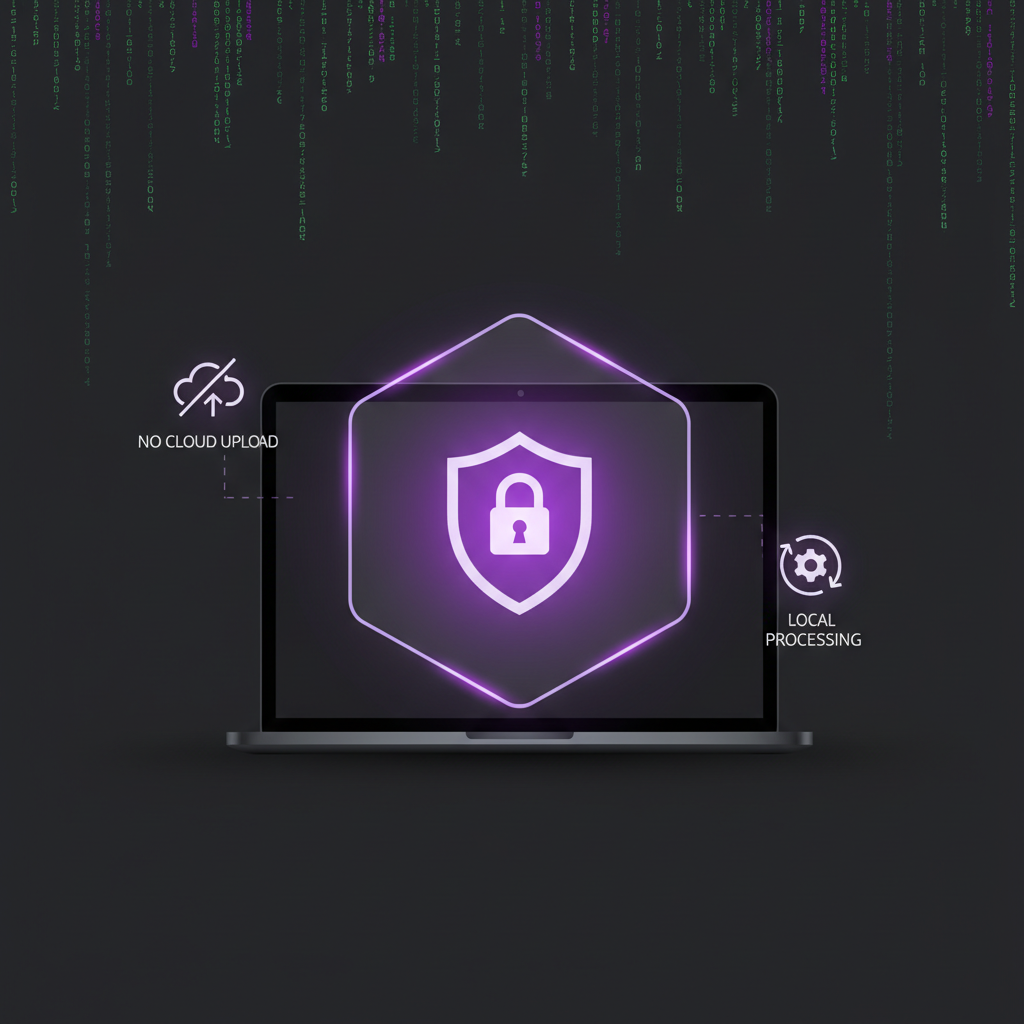
Complete Privacy

Complete Privacy

All cropping happens in your browser using the Canvas API. Your images are never uploaded to any server.

Perfect For Any Use Case
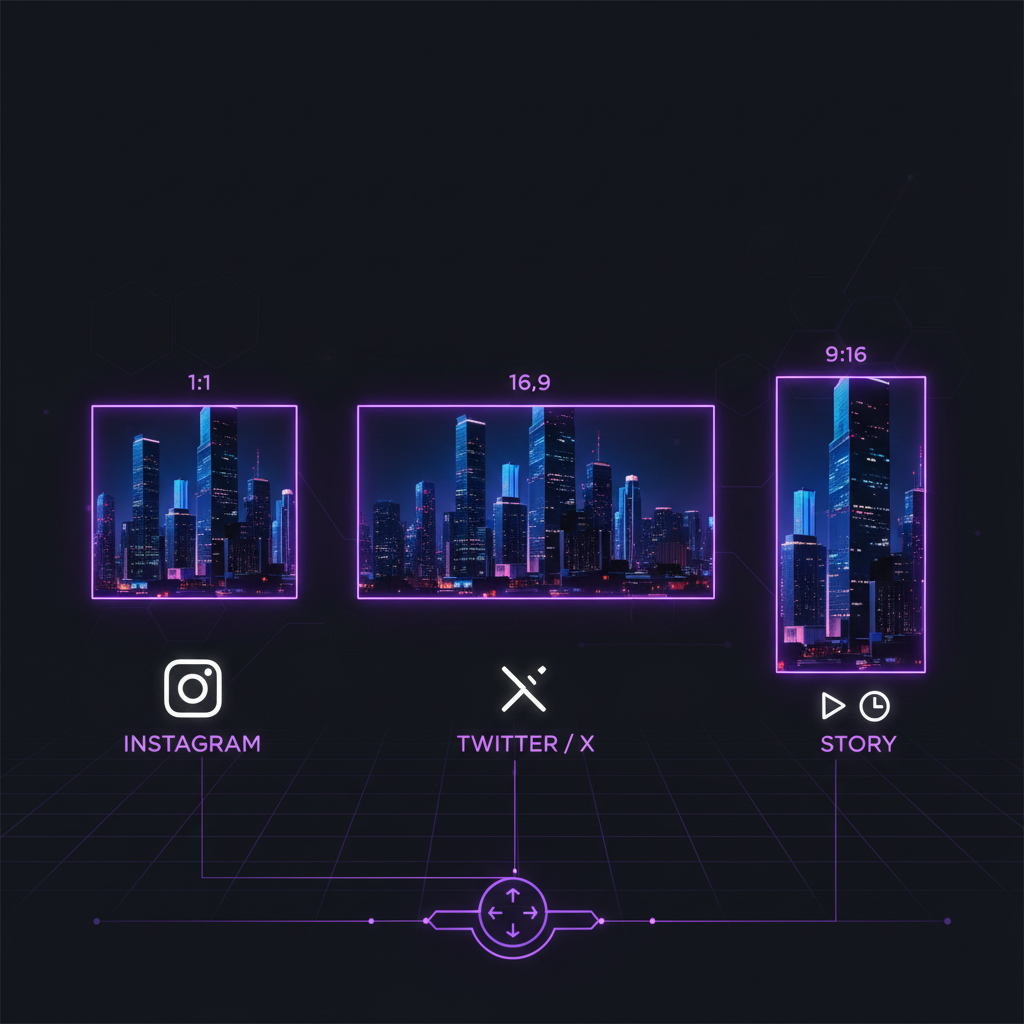
Social Media: Square crops for Instagram, landscape for Twitter banners
Profile Pictures: Crop and center faces for perfect avatars
Print Photos: Use 3:2 or 4:3 ratios for standard photo prints

Zero-Upload Privacy

Zero-Upload Privacy

All cropping happens in your browser using the HTML5 Canvas API. No image data touches our servers — there's no cloud processing, no tracking, and no server logs. Close the tab and everything is gone.

Why Choose Our Cropper?

See how we compare to other image croppers

AI Toolbox

No Download Required
100% Private
No Watermarks
No Account Required
Works Offline
Completely Free

Canva

No Download Required
100% Private
No Watermarks
No Account Required
Works Offline
Completely Free

Adobe Express

No Download Required
100% Private
No Watermarks
No Account Required
Works Offline
Completely Free

iLoveIMG

No Download Required
100% Private
No Watermarks
No Account Required
Works Offline
Completely Free

Pixlr

No Download Required
100% Private
No Watermarks
No Account Required
Works Offline
Completely Free

GIMP

No Download Required
100% Private
No Watermarks
No Account Required
Works Offline
Completely Free

How to Crop an Image

1

Upload Your Image

Drag and drop your image file or click to browse. Supports JPEG, PNG, WebP, BMP, and AVIF formats.

2

Adjust Your Crop

Select an aspect ratio or use freeform. Drag to reposition and use the zoom slider to frame your image perfectly.

3

Download Result

Choose your output format and quality, then click Crop Image. Your cropped image downloads instantly.

Frequently Asked Questions

01Is it safe to crop images online?+
Yes! Our image cropper processes everything locally in your browser. Your images are never uploaded to any server, making it completely private and secure.
02What image formats can I crop?+
You can crop JPEG, PNG, WebP, BMP, and AVIF images. The tool supports export to JPEG, PNG, or WebP format with adjustable quality.
03How do I crop an image to a specific size?+
Select your desired aspect ratio (like 1:1 for square or 16:9 for widescreen), then use the zoom and drag controls to frame the exact portion you want to keep.
04Can I crop large images?+
Yes! Since processing happens entirely in your browser, there are no server limits. You can crop images of any size.
05What does the quality setting do?+
Quality controls the compression level for JPEG and WebP formats. Higher quality produces better-looking images with larger file sizes. PNG is always lossless.
06Which output format should I choose?+
Use JPEG for photos (smallest file size), PNG for graphics or images needing transparency, and WebP for the best balance of quality and compression.
07Can I crop images on my phone?+
Yes! The cropper works on mobile devices with touch support for pinch-to-zoom. Modern browsers on iOS and Android are fully supported.
08Will cropping reduce image quality?+
Cropping at high quality preserves nearly all detail. For zero quality loss, export as PNG. JPEG and WebP use compression but high settings maintain excellent quality.
09What aspect ratio should I use for Instagram posts?+
Instagram supports 1:1 (square), 4:5 (portrait), and 1.91:1 (landscape). Square 1:1 is the classic Instagram format and works well for most content. For Reels and Stories, use 9:16 portrait orientation to fill the full screen.
10How do I crop a profile picture as a 1:1 square?+
Select the Square (1:1) aspect ratio preset, then drag and zoom to center your face in the frame. Most social platforms — including Instagram, X, LinkedIn, and WhatsApp — use square images that are displayed as circles, so keep your subject centered.
11What is the best image format for the web?+
WebP offers the best balance of quality and file size for web use, with files typically 25-35% smaller than JPEG at the same visual quality. Use JPEG as a fallback for maximum browser compatibility, and PNG only when you need transparency or pixel-perfect graphics.
12Can I crop transparent PNG images?+
Yes. If you upload a PNG with a transparent background and export as PNG, the transparency is fully preserved. Note that exporting as JPEG will replace transparent areas with a white background, since JPEG does not support transparency.
13What aspect ratio do YouTube thumbnails use?+
YouTube thumbnails use a 16:9 aspect ratio at a recommended resolution of 1280x720 pixels. Select the Landscape (16:9) preset in our cropper to frame your thumbnail, then export as JPEG for the smallest file size YouTube will accept.
14How do I crop an image for a Facebook cover photo?+
Facebook cover photos display at 820x312 pixels on desktop, which is roughly a 2.63:1 ratio. Use the Freeform crop mode to drag a wide, narrow selection across your image. Keep important content toward the center, as mobile devices crop the sides.
15What is the difference between JPEG and PNG for cropped images?+
JPEG uses lossy compression, producing smaller files ideal for photographs but losing some detail each time you save. PNG uses lossless compression, preserving every pixel perfectly and supporting transparency, but results in larger files. Choose JPEG for photos and PNG for graphics or screenshots.
16Can I crop images without losing resolution?+
Cropping removes pixels outside the selected area, so the output will have fewer total pixels than the original. However, the pixels inside your crop remain at full quality — no resampling or downscaling is applied. Export as PNG to avoid any additional compression loss.
17What is WebP and should I use it?+
WebP is a modern image format developed by Google that supports both lossy and lossless compression, transparency, and animation. It produces significantly smaller files than JPEG or PNG at comparable quality. All major browsers now support it, making WebP an excellent default choice for web images.
18How should I crop images for print?+
For standard photo prints, use 3:2 (matches 4x6 inch prints) or 4:3 (matches 8x6 inch prints). Export as PNG at the highest quality to preserve detail, and ensure your source image has at least 300 DPI at the target print size for sharp results.
19What size should a LinkedIn banner be?+
LinkedIn recommends a personal profile banner of 1584x396 pixels, which is a 4:1 aspect ratio. Company page banners are 1128x191 pixels. Use the Freeform crop mode to match these wide dimensions, and keep key content away from the edges to avoid mobile cropping.
20Can I undo a crop after downloading?+
Once you download a cropped image, the crop is permanent in that file — the removed pixels are not stored. However, your original image is never modified since all processing happens in your browser. Simply reload the original file and crop again if you need a different result.

Responsible Use

Please crop only images you own or have rights to use. Respect copyright laws and intellectual property rights.

Ready to Crop Your Image?

Drop your file above and start cropping — no sign-up, no limits, no waiting.

Drop your image here