Free Online Video Splitter
Split Video Into Clips
Cut video into clips by timestamp, duration, size, or equal parts — right in your browser. No upload, no watermark, no signup, and your files never leave your device.
Drop a file to begin
or click to browse — nothing is uploaded
MP4, WebM, MOV, MKV, AVI, FLV, 3GP, MPG, WMV and more
Select fileFree Video Splitter Online — Split Video Into Clips Without Uploading
Split video online with a private browser-based video splitter. Cut MP4, WebM, MOV, MKV and other videos by duration, file size, equal parts or exact timestamps — no upload, no watermark and no account required.
- Runs entirely in your browser — files never touch a remote server
- Fast Mode splits instantly using stream copy — no re-encoding wait
- Export in MP4, WebM, MOV, or other formats; choose High / Medium / Low quality
4 Ways to Split Video for Every Need
Pick the best way to split video for your workflow — manual precision, bulk automation, or anything in between.
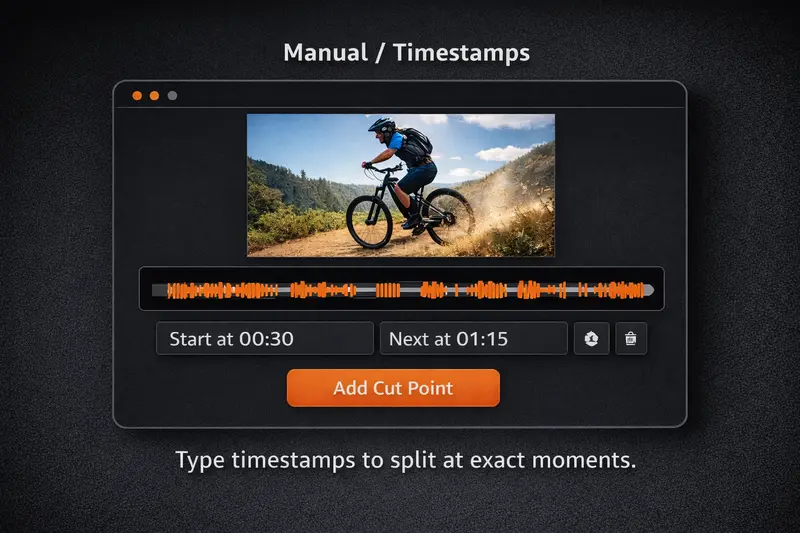
Manual Split (Timestamps + Preview)
Click anywhere on the waveform / thumbnail timeline to split video precisely. Drag markers to reposition, or type exact timecodes for frame-level accuracy. Use the preview player to verify each segment before exporting.
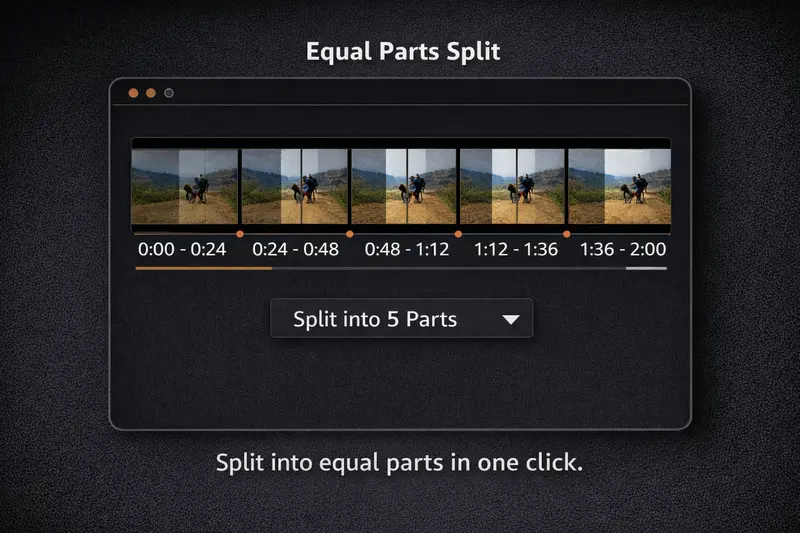
Equal Parts Split
Choose the total number of segments (e.g., 4 equal parts) to split video into uniform chapters. Ideal for breaking lecture recordings or long-form content into equal-length clips.
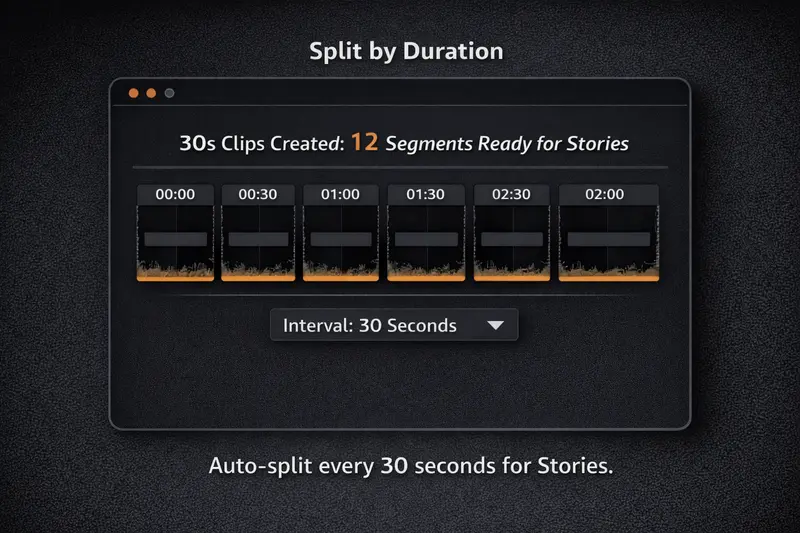
Split by Duration
Set a segment length (e.g., 30 seconds) to split video by fixed intervals. The splitter chunks the entire video into clips of that duration — the final clip may be shorter if there's leftover footage.
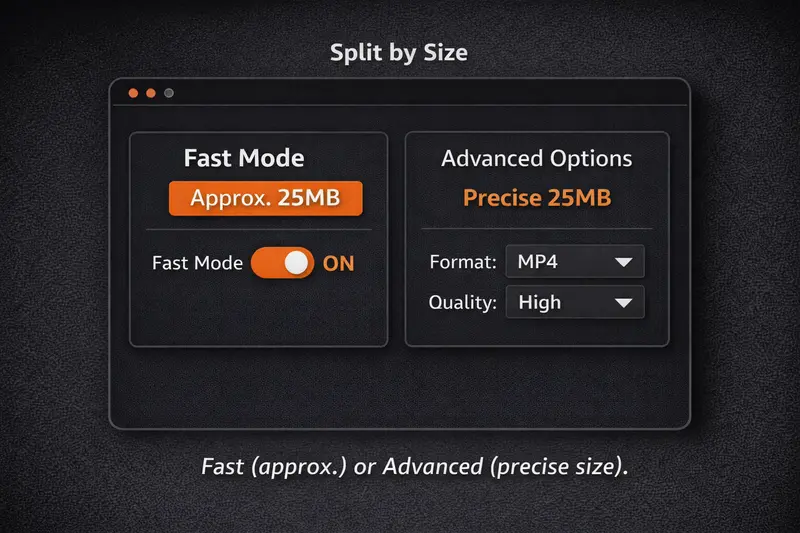
Split by Size
Split video by file size — specify a target MB per clip. Perfect for upload limits on social platforms or messaging apps.
- •Fast Mode: Estimates size from bitrate and adjusts timestamps to fit.
- •Advanced Mode: Re-encodes clips to hit exact target sizes (longer process).
Why Split Video Locally Instead of Cloud
When you split video with cloud tools, you must upload, wait for remote processing, and re-download. Our local-first approach skips all of that.
Fast Mode = Stream Copy (No Re-encoding)
Enable Fast Mode to split video instantly by copying the original streams. The only trade-off is that cuts snap to the nearest keyframe (typically within a second), but you save minutes on large files.
Use Fast Mode for quick splits; disable it when you need frame-perfect timing or want to convert formats.
Advanced Options (Format + Quality Control)
When Fast Mode is off, you can choose a different output container (MP4, WebM, MOV, MKV, AVI…) and set quality to High, Medium, or Low. This re-encodes clips, which takes longer but gives you format flexibility and precise cuts.
Zero-Upload Privacy
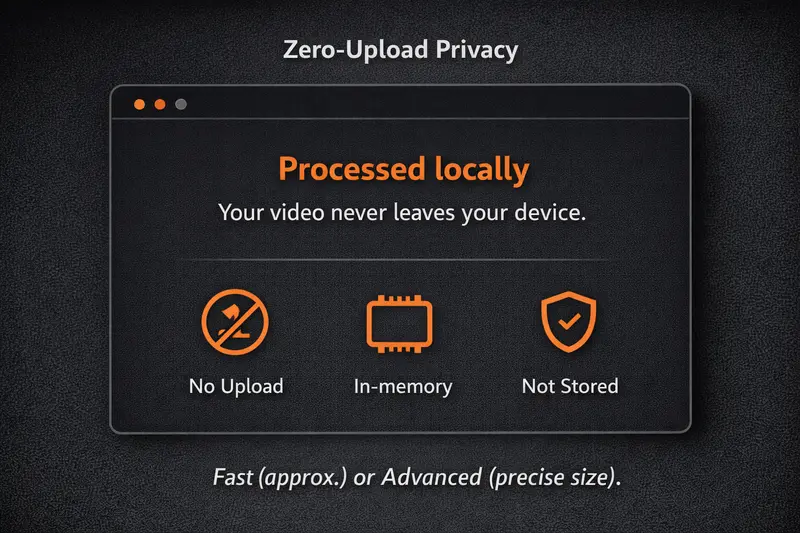
When you split video here, all processing uses WebAssembly-compiled FFmpeg in your browser tab. No data leaves your device — there's no tracking, no cloud account, and no server logs. Close the tab and everything is gone.
Works on Desktop & Mobile (Best on Chrome/Edge)
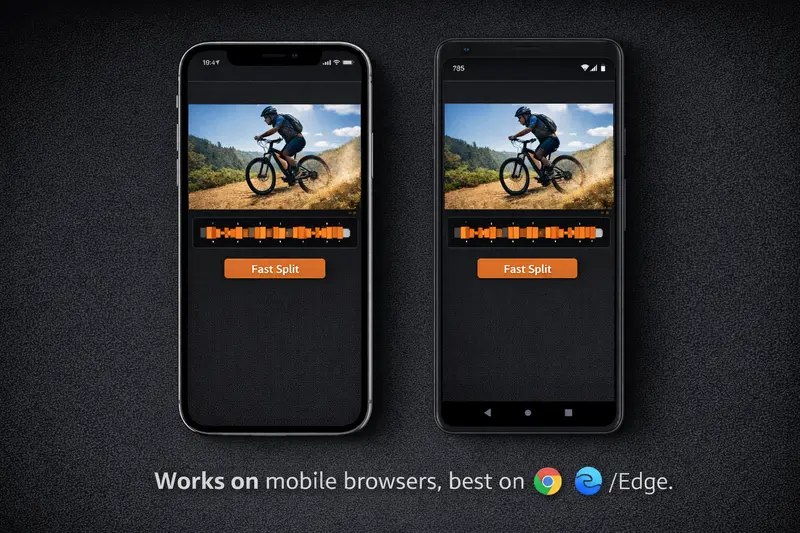
We recommend Chromium-based browsers (Chrome, Edge, Brave) for the smoothest experience. Firefox and Safari work for smaller files but may be slower. On mobile, Chrome on Android handles most videos; iOS Safari has limited WASM performance.
How to Split Video Online
Select Your Video
Drag and drop your video file or click to browse. Supports MP4, WebM, MOV, MKV, AVI, and more.
Choose Split Points
Click on the timeline to add split points, or use automatic splitting by duration, size, or equal parts.
Download Your Clips
Click Split Video and download your clips individually or all at once as separate files.
Why Choose AI Toolbox?
See how we compare to other video splitters
| AI Toolbox | Split-Video.com | Clideo | Canva | Video Candy | Adobe Express | |
|---|---|---|---|---|---|---|
| Processing Speed | 10x Faster | Slow | Upload Wait | Upload Wait | Upload Wait | Upload Wait |
| 100% Private | ||||||
| No Watermarks | ||||||
| No Account Required | ||||||
| Works Offline | ||||||
| Completely Free |
AI Toolbox
Split-Video.com
Clideo
Canva
Video Candy
Adobe Express
Related Video Tools
Explore our other free browser-based video tools to complete your video editing workflow.
Frequently Asked Questions
01Is it safe to split video online with this free video splitter?+
02What video formats can I split?+
03How do I split video online into equal parts?+
04Can I split video files of any size?+
05What's the difference between Fast Mode and normal mode?+
06Are AV1 encoded videos supported?+
07Why do my clips start a second or two off from where I placed the split?+
08Can I change the output format of my clips?+
09How long does it take to split video?+
10Does this work on mobile devices?+
11Can I split a video without losing quality?+
12How do I split a video for Instagram, TikTok, or YouTube Shorts?+
13What happens to the audio when I split a video?+
14Can I split videos that have burned-in or soft subtitles?+
15How do I split 4K or high-resolution videos?+
16What is a keyframe and why does it matter for splitting?+
17Can I merge or rejoin clips after splitting them?+
18How do I split a screen recording efficiently?+
19Can I split videos that have multiple audio tracks?+
20Does splitting preserve the original video metadata?+
Responsible Use & Compliance
Please split only content you own or have rights to distribute. Respect copyright laws and platform terms of service.
Ready to Split Video Online?
Drop your file above and start cutting — no sign-up, no limits, no waiting.
Select your video